Live Chat for WordPress on Multiple Sites
Live chat for WordPress usually means one chat plugin, one login and one inbox per website. If you look after ten or forty WordPress sites, that is ten or forty places a visitor can be left waiting. This guide shows how to run live chat for WordPress across every site you manage instead: one desk for all of them, each site with its own look, hours and team, and clients answering their own chats when they want to.
The short answer
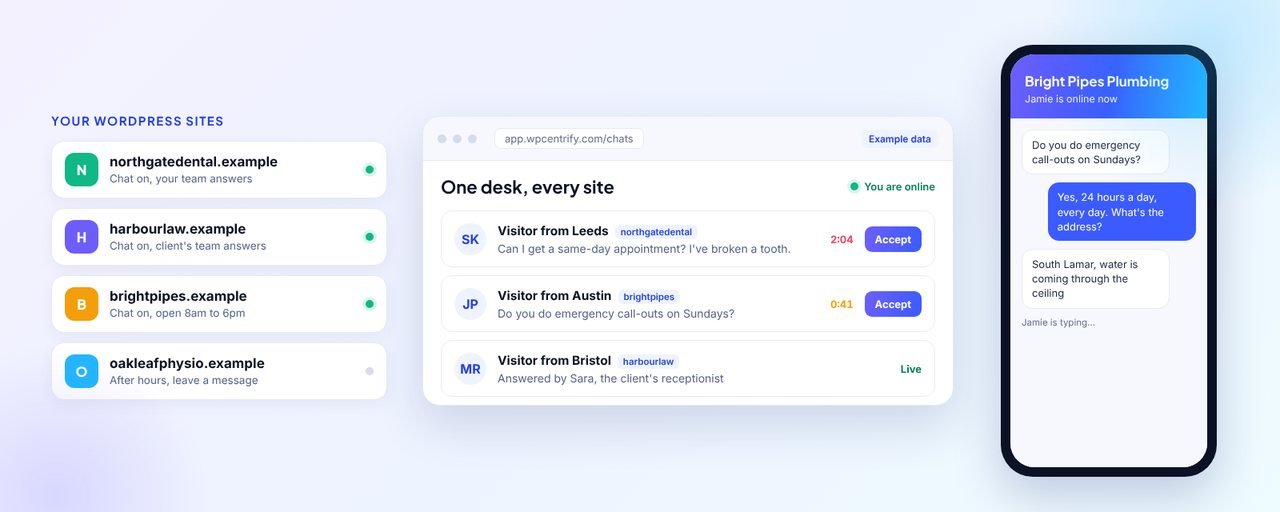
To run live chat for WordPress on multiple sites, add the chat window to every site through one tool built for many websites, give each site its own look, hours and team, and answer every site from one desk that labels each chat with the website it came from. Decide per site whether your team answers or the client's own staff do, set business hours so nobody waits in an empty queue, and check the live page so a caching plugin has not hidden the widget. In WPCentrify, the connector plugin your sites already run adds the chat window with one script tag, so there is no second WordPress live chat plugin to install on each site.
Disclosure: WPCentrify is our product. Every product fact here is taken from the WPCentrify live chat feature as it works on 25 November 2026.
What is live chat for WordPress on multiple sites?
Live chat for WordPress on multiple sites is one chat setup that puts a chat window on many WordPress websites and sends every conversation to one place, where a real person answers while the visitor is still on the page. Each website keeps its own chat window, hours and team, but the people answering do not have to sign into a separate tool for every site.
Most WordPress live chat tools are built around one business with one website. That is fine for a single shop. It is a different job when you are an agency with forty client sites, a freelancer looking after a dozen, a franchise with a website per location, or a business group running several brands. Then live chat for WordPress has to answer three questions a single-site tool never asks: which website is this visitor on, who should answer them, and who is allowed to read the conversation afterwards.
WordPress has no live chat built in, so it always arrives through a plugin or a script. The choice is whether that is a separate live chat plugin for WordPress on every site, or one tool that covers them all.
Why one live chat plugin per WordPress site stops working
Installing a live chat plugin on each WordPress site is how almost everybody starts, and it works for the first two or three. Somewhere past that, the cracks show:
- A login per site. Each chat account has its own inbox, so answering means keeping a tab open for every website and hoping none of them is the one that rings while you are in another.
- Chats nobody sees. A visitor on the eleventh site waits while you answer the first. Nothing tells you the eleventh exists until the visitor has left.
- Another plugin to keep updated. Every WordPress live chat plugin is one more thing to update, test against the theme and check after every caching change, on every site.
- No idea which site a chat came from. When chats are merged into one generic inbox, a question about "the Saturday appointment" could be any of your clients.
- Clients who want to answer their own chats. Only the receptionist knows whether Tuesday at three is free, but giving them a login to your shared chat account shows them every other client.
- Leads scattered across tools. The details a visitor gives in chat end up in a different place from the contact form on the same site.
None of these is a fault in any single live chat plugin for WordPress. They come from running a one-site tool forty times. Looking for a live chat plugin? WordPress sites that are already connected to WPCentrify need none: the chat window comes with the plugin they already run.
Three ways to run live chat for WordPress on many sites
There are three common setups. Which one fits depends mostly on how many sites you run and who answers.
| Setup | How it works | Works well when | Where it breaks |
|---|---|---|---|
| A separate live chat plugin on each site | Each website has its own chat account, inbox and settings | You run two or three sites and answer them yourself | Logins, updates and missed chats grow with every site |
| One chat account shared by several sites | Several websites point at one account and one inbox | The sites belong to one business and share one team | Sites may share one look and one set of hours, and every agent sees every site |
| A WordPress management platform with live chat built in | The plugin that already manages each site adds the chat window, and every site answers into one desk | You look after many client sites and some clients want their own staff answering | No WhatsApp or other channels in the same inbox yet |
The third way is what WPCentrify does: live chat for WordPress sits beside updates, backups, uptime monitoring and contact form leads, in the same tool you already use to run those sites. If you only run one website, a standalone tool may suit you better, and our comparison of the best WordPress live chat plugins covers six of them side by side.
What to look for in live chat for WordPress when you manage many sites
A checklist for any WordPress live chat tool you are considering, written for people with more than one website:
| Capability | Why it matters on many sites |
|---|---|
| Settings per website | A dental practice and a law firm should never share one chat window, one welcome message or one set of hours |
| One desk, with the website on every chat | You see every waiting visitor in one place and know which site they are on before you reply |
| Business hours per site, with time zones and holidays | Clients in different cities close at different times; outside hours visitors should leave a message, not wait |
| A separate desk for the client's own staff | Some clients want their receptionist answering, without seeing your other clients |
| Control over who reads transcripts | A clinic or law firm may not want the agency reading every conversation |
| Routing and a limit per person | Chats go to the right person, and nobody gets twelve at once |
| Phone notifications | A chat should reach somebody who is away from the desk |
| Leads in one list | Chat enquiries belong next to the contact form enquiries from the same site |
| A light script | A chat widget loads on every page of every site, so it must not slow them down |
| White label | Your client's visitors should see the client's brand, not yours or ours |
If a live chat plugin for WordPress covers the first four, it is built for many sites. If it covers only the last six, it was built for one.
How to set up live chat for WordPress on multiple sites
This is the setup in WPCentrify. For a site that is already connected it takes a few minutes, and nothing new is installed on the WordPress site.
- Connect each website. Install the WPCentrify connector plugin on each WordPress site, or open a site that is already connected. On a site without the connector, paste the chat snippet into the footer by hand.
- Switch live chat on and choose how visitors reach a person. In the website's chat settings, turn live chat on. Choose whether a visitor's first message goes straight to your team or whether they press a button to talk to a person.
- Make the chat window match the website. Set the color, position, logo, light or dark theme, welcome message and quick-reply buttons for that site, so the chat looks like part of the client's website.
- Set business hours, the time zone and holidays. Add the hours somebody will answer, in the client's own time zone, with holidays. Outside those hours, visitors leave a message instead of waiting in a queue.
- Choose who answers. Add your own agents and teams for the site, or hand the site's chat to the client so their receptionists answer from the client desk.
- Set routing, chat limits and response targets. Choose whether agents pick chats from the queue or chats are assigned round-robin or to whoever is least busy, set how many chats each person can take at once, and set first-response and waiting targets.
- Check the live page, then repeat for the next site. Press Check the live page to confirm the chat window appears to real visitors behind caching and optimizer plugins, say hello from another browser, then move on to the next website.
Do one site first, live, for a week. Read the chats, adjust the welcome message and quick replies, then roll the same pattern out to the rest. Live chat for WordPress gets better with a few days of real questions, and copying a tested setup is much quicker than fixing forty untested ones.
Watch live chat for WordPress in action
One enquiry on a client's WordPress site, from the first hello to a saved lead with the chat summarized, in 80 seconds:
Answering every site from one desk
The agent desk is where your team spends its day when it runs live chat for WordPress across many sites. Chats from every website you switch on arrive in one list, each labeled with the website it came from.
- Incoming chats ring for a minute and show how long the visitor has waited. The timer turns amber at 40 seconds and red at two minutes, and Accept sits right on the card.
- Quick replies are one slash away. Placeholders such as {visitor.name} and {agent.name} fill themselves in, and a greeting can send itself the moment you accept.
- You see who you are talking to: name, country and city, device, their local time and the page they are reading right now.
- A lead card fills itself with the email, phone and what the visitor needs, and one click saves it.
- Transfers, takeovers, notes and tags. Pass a chat to a colleague with a note, let a supervisor take over, add internal notes the visitor never sees, or block a visitor.
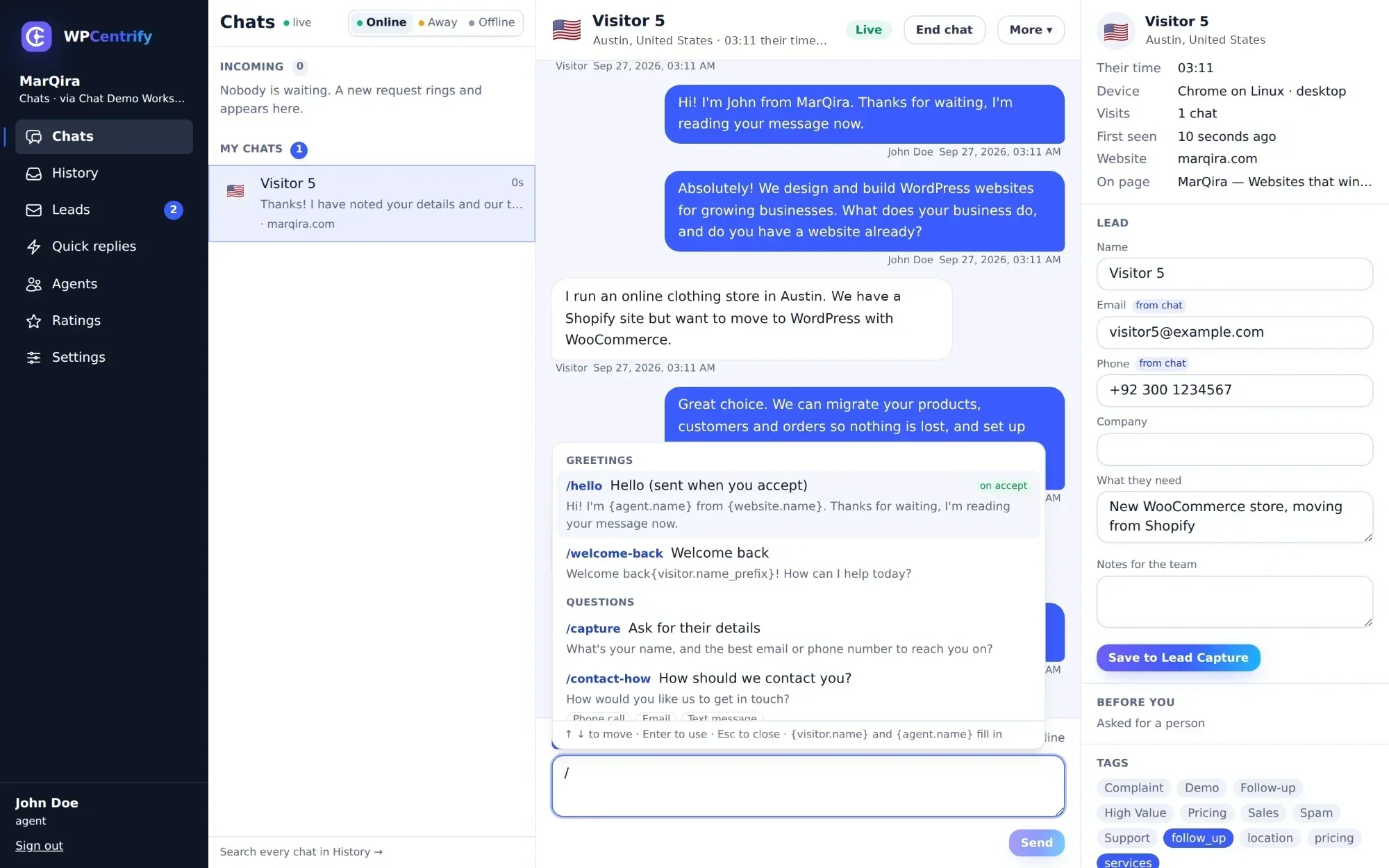
Because every chat carries its website, one person can cover several clients in a quiet hour without mixing them up, which is the whole point of live chat for WordPress on multiple sites.
Should your team answer, or the client's team?
This is the decision that separates agency live chat for WordPress from single-site tools. In WPCentrify you make it per website:
| Option | Who answers | Best for |
|---|---|---|
| Your team answers | Your agents, from your agency desk | Clients who pay you to look after enquiries, or sites where the questions are general |
| The client's team answers | The client's receptionists, from their own client desk at chat.wpcentrify.com | Clinics, salons, law firms and anyone where only the client knows the diary |
| Start with you, hand over later | Your team at first, the client's staff once they are trained | Clients who are new to live chat and want to see it working first |
When a website is handed to the client, new chats on it go to their team instead of yours. Their desk is simpler: chats, quick replies, history, leads, their own team, ratings and settings, with nothing about your other clients and nothing about managing WordPress.
The client's owner also decides what you can see. They choose whether the agency can read their transcripts and whether it can see their team's ratings, and every change is logged. With transcripts off you can see that a chat happened, never what was said. Even with them on, you can read but not reply. Everybody who answers, your people and every client's receptionists alike, uses an agent seat. Roles and permissions for the rest of the platform work the same way, as described in team and client access.
What happens when nobody is online?
A chat window that says "We're online" when nobody is watching is worse than no chat at all. Good live chat for WordPress handles the gaps:
- Business hours per website, in that client's time zone, with holidays.
- Leave a message. Outside those hours, a request to talk to somebody becomes a message the visitor leaves with their details, instead of a place in a queue nobody is watching.
- Honest status. The launcher and header show whether somebody is available, and a visitor in the queue sees their place and the usual reply time.
- Response targets. Set a first-response target and a waiting target. A missed target is flagged and raises that chat's priority.
If you would rather collect a few set answers than offer a person, Guided Chat, WPCentrify's tap-through enquiry form, asks the questions you write and saves the answers as a lead.
Does live chat for WordPress slow down a site?
It does not have to. A chat widget is a script that loads on every page, and third-party scripts are one of the most common causes of slow pages, which is why Google's own guidance tells you to load them carefully. The WPCentrify chat window is built to stay out of the way:
- A tiny loader. Only the round launcher button loads with the page.
- The chat loads when it is opened. Visitors who never click it never download it.
- Its own sealed box. The widget runs inside a Shadow DOM, so the theme's styles cannot break it and it cannot restyle the theme.
- Works behind caching and optimizer plugins, including WP Rocket, LiteSpeed Cache and Cloudflare Rocket Loader.
Caching and script optimizers are also the usual reason a chat widget quietly disappears on one site. The Check the live page button loads the real public page and confirms the widget appears to visitors, and performance monitoring keeps watching Core Web Vitals on every site afterwards.
Answering live chat for WordPress from your phone
Visitors do not wait for you to get back to your desk. The agent desk works in a phone's browser, and you can add WPC Chat to your home screen so new chats ring like a text message, even when it is closed.
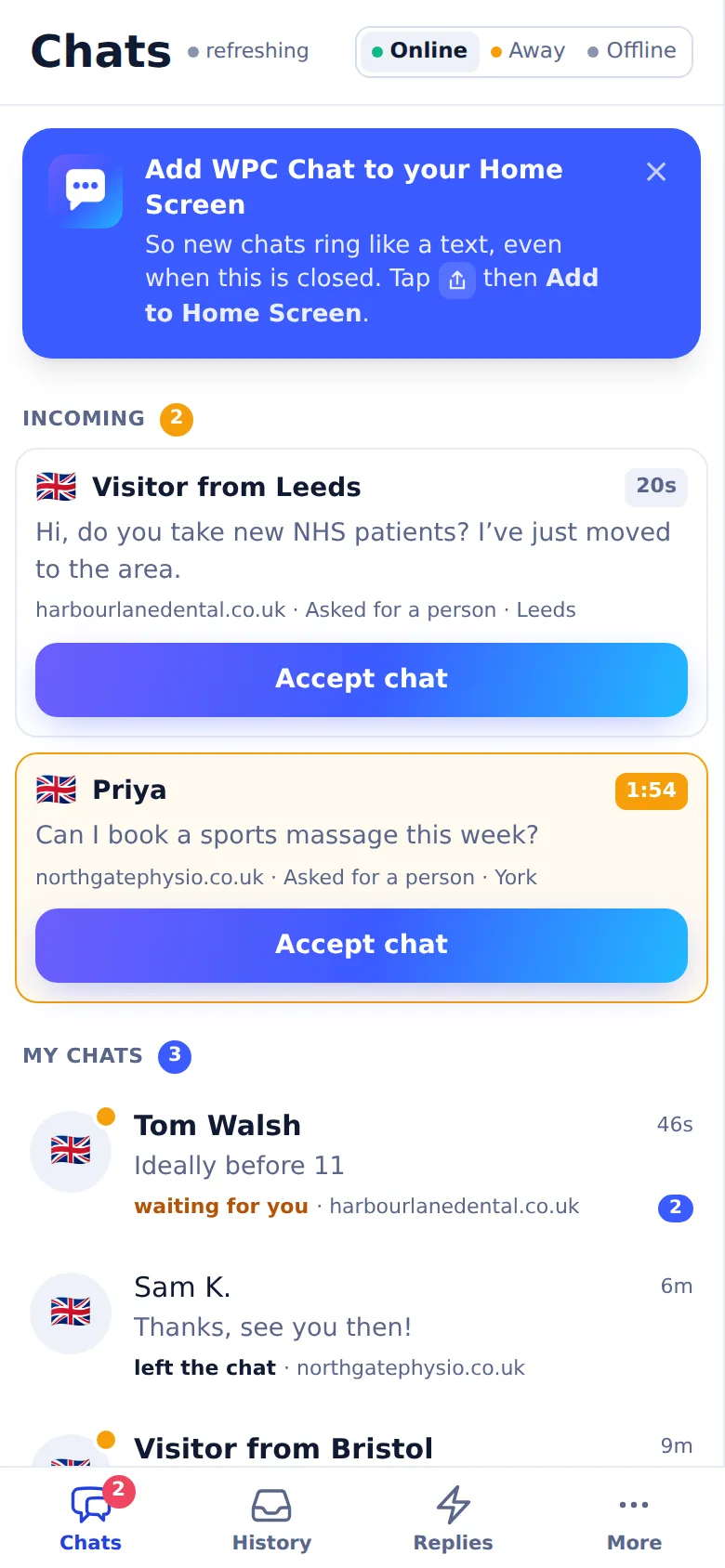
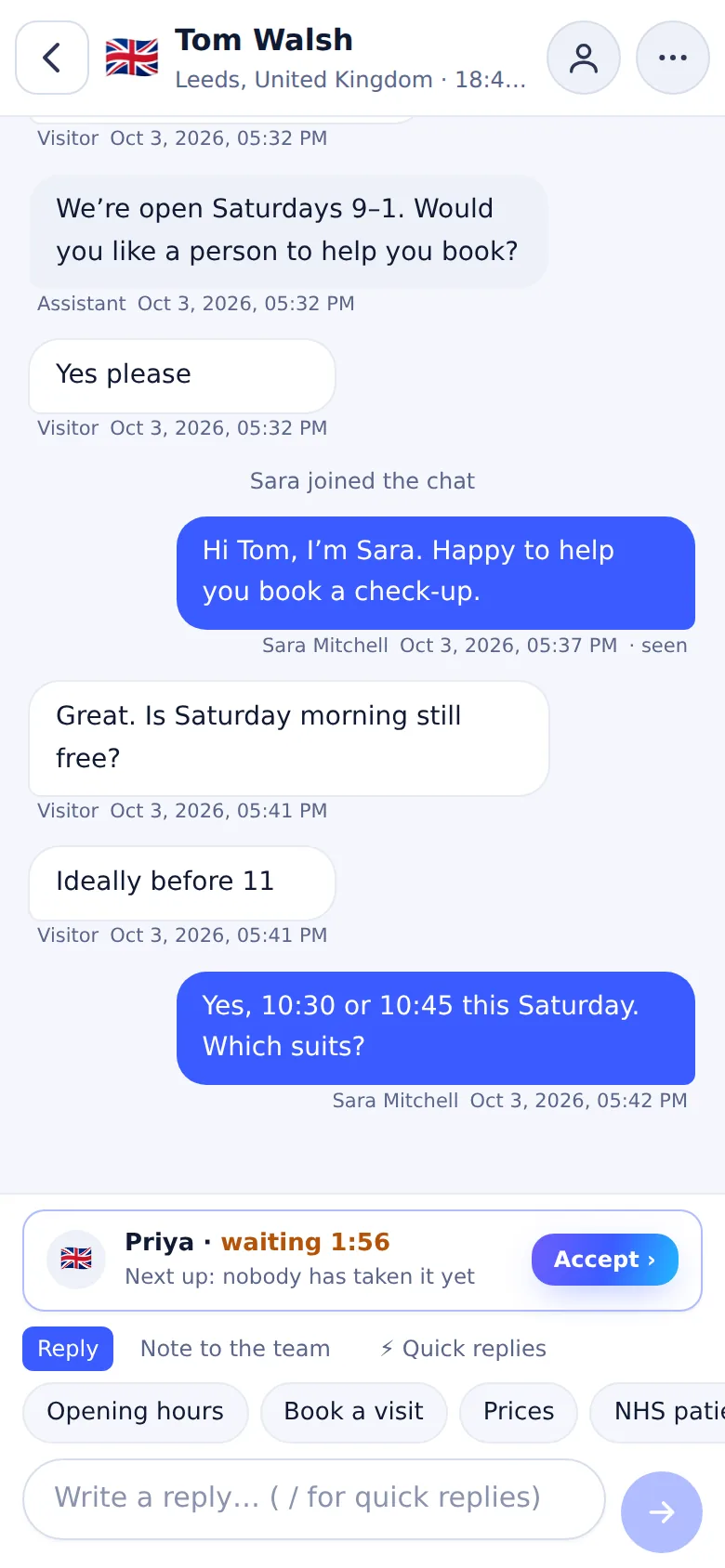
- Every waiting visitor, from every site, with the website, what they asked and how long they have waited. Accept with one tap.
- A new chat never loses your place. When another visitor asks for a person mid-conversation, a sheet slides up with their question, and what you were typing is kept.
- See who is next above the reply box, with quick replies and team notes one tap away.
Turning chats into leads you can see across sites
Live chat for WordPress earns its keep when chats become enquiries somebody follows up. In WPCentrify:
- The lead card fills itself from the conversation, and one click saves it to Lead Captures, next to every contact form enquiry from the same site.
- Every chat gets a short summary when it closes or the visitor leaves: what they wanted, what was answered or promised, and the next step. It is written by WPCentrify's own AI model, and nothing leaves our servers.
- Visitors rate the chat poor, okay or good, can add a comment, and can have the transcript emailed to them. You see an average per person, with every comment linked to its chat.
Visitor privacy and client data
Live chat carries names, email addresses and questions people would not post publicly, and with many sites it also carries several clients' data in one place. What to expect from live chat for WordPress that is built for this:
- Location without sending the IP anywhere. Country and city come from a location database on WPCentrify's own servers. The IP address is never sent to a web service and is not stored.
- First names only. Visitors see an agent's first name. Surnames and email addresses stay inside the desk.
- Clients kept apart. Each client sees only its own websites and chats, and every workspace is sealed off from every other.
- Typed text stays text. Everything a visitor types is treated as text, never as code.
Mention the chat in each site's privacy policy: what the chat collects and why. WPCentrify can write the privacy policy and cookie policy for a site as part of cookie consent.
Live chat for WordPress, a chatbot, or both?
With live chat a real person replies. With a chatbot, software replies on its own. They solve different problems: a person can check the diary and reassure somebody worried, while a chatbot can answer the same opening-hours question at three in the morning.
WPCentrify live chat works on its own today. Its AI chatbot, the Virtual Assistant, is coming soon. When it launches, you choose one of four modes for each website: assistant only, live chat only, both (you choose who meets the visitor first while somebody is on shift), or neither. The assistant will hand over to a person with the whole conversation, who the visitor is, the page they are on and a short summary. More in the best chatbot for WordPress.
How to measure live chat across all your sites
Measure the same few numbers on every site, so you can see which ones need attention:
- Time to first reply. The number visitors feel most. Our guide to live chat response time has sourced benchmarks.
- Missed chats. Chats that waited past your target, and when they happened.
- Leads from chat, next to leads from forms on the same site.
- Ratings per person and per site, with the comments read, not just counted.
A site where chats are missed at lunchtime needs cover at lunchtime, not a better welcome message. That is the kind of answer live chat for WordPress across multiple sites gives you once the numbers sit side by side.
Common mistakes when rolling out live chat for WordPress
- Switching on every site at once. Start with one, learn the questions, then copy the setup.
- Showing "online" when nobody is. Set business hours and holidays before the first visitor arrives.
- One welcome message for every client. Write one per site, in that business's voice.
- Forgetting caching. Check the live page after every caching or optimizer change.
- Handing chats to a client without training. Give their receptionists quick replies for the ten questions they will get most.
- Treating chat as separate from leads. Save every useful chat as a lead, or it is forgotten by Friday.
What WPCentrify live chat does not do yet
Better to hear it here than halfway through a client rollout:
- File attachments in chat.
- Proactive messages, where the chat window opens itself on a rule.
- WhatsApp, Facebook Messenger and other channels in the same inbox. It covers the chat window on the website.
- Limiting an agency agent to particular clients.
- A preview of what the visitor is typing before they press send. That one is left out on purpose, for the visitor's privacy.
If WhatsApp in the same inbox is a must, a standalone tool may suit you better today, and the WordPress live chat plugin comparison shows which ones offer it.
What does live chat for WordPress cost on WPCentrify?
Live chat is included on the Studio, Agency and Scale plans:
| Plan | Websites with live chat | Agent seats |
|---|---|---|
| Studio | 2 | 2 |
| Agency | 10 | 10 |
| Scale | 50 | 25 |
Extra agent seats are $9 a month and extra live chat websites $5 a month. Everybody who answers chats uses an agent seat, your own people and every client's receptionists alike. White label, which removes the Powered by WPCentrify footer from the chat window, is included on Agency and Scale. Plan prices are to be revealed; see pricing for what each plan includes.
Your live chat for WordPress rollout checklist
- Every site connected, or the chat snippet pasted into the footer
- Color, logo, position, theme and welcome message set per site
- Business hours, time zone and holidays set per site
- Who answers decided per site: your team or the client's
- Routing, a chat limit per person and response targets set
- Quick replies written for the ten most common questions
- WPC Chat on the home screen of everybody who answers
- Check the live page pressed on every site, and a test chat sent
- The chat mentioned in each site's privacy policy
- A weekly look at reply times, missed chats, leads and ratings
Sources
- Efficiently load third-party JavaScript, web.dev
- Reduce the impact of third-party code, Chrome for Developers
- Using shadow DOM, MDN Web Docs
Sources checked on 25 November 2026. Product details are from the WPCentrify live chat feature on the same date.
Questions about live chat for WordPress
Live chat for WordPress is a chat window on a WordPress website where a visitor types a question and a real person replies while the visitor is still on the page. WordPress has no live chat built in, so it is added with a plugin or a script.
Not if your sites are connected to WPCentrify. The connector plugin they already run adds the chat window with one script tag, so there is no second WordPress live chat plugin to install or update on each site. A site without the connector can paste the chat snippet into its footer.
Yes. Every website you switch on sends its chats to one desk, each labeled with the website it came from, while each site keeps its own look, welcome message, business hours, time zone, holidays and team.
It does not have to. In WPCentrify only a tiny loader for the launcher button loads with the page, the chat loads when a visitor opens it, and it runs inside a Shadow DOM so it cannot clash with the theme. It works behind WP Rocket, LiteSpeed Cache and Cloudflare Rocket Loader.
Yes. Hand that website's chat to the client and new chats go to their team, who answer from a simpler client desk at chat.wpcentrify.com. The client's owner decides whether the agency can read their transcripts.
Outside the business hours you set for that website, including holidays, a request to talk to somebody becomes a message the visitor leaves with their details, instead of waiting in a queue nobody is watching.
Yes. The agent desk works in a phone's browser, and with WPC Chat on your home screen new chats ring like a text message, even when it is closed. You can accept a chat with one tap and see who is waiting next.
They do different jobs. A person can check a diary and reassure a worried visitor, while a chatbot can answer common questions at any hour. WPCentrify live chat works today, and its AI chatbot is coming soon, with the option to run either, both or neither per website.
Live chat is included on Studio with 2 websites and 2 agent seats, Agency with 10 and 10, and Scale with 50 websites and 25 agent seats. Extra agent seats are $9 a month and extra live chat websites $5 a month.
No. WordPress does not include live chat, so it is added with a plugin or a script. On a site connected to WPCentrify, the connector adds the chat window, so nothing else needs installing.
Related reading
WordPress live chat
Live chat on every client site, answered from one desk or by the client's own team.
See the featureBest WordPress live chat plugins
Six live chat plugins for WordPress compared by use case, with free plans and costs.
Read the comparisonLive chat response time
How fast to reply, sourced benchmarks and the habits that keep a small team under a minute.
Read the guideMore on this topic: why live chat matters on a WordPress website, every enquiry from every site in one list and manage multiple WordPress sites from one dashboard.
Put live chat on every WordPress site you manage
Switch live chat on for one website, answer every site from one desk, and hand a site to the client when they are ready.
Plan prices to be revealed. Start free on one website today.