Replace any image or file in WordPress, and every page shows the new one
Swap a photo, logo, PDF or video that is already in a website's media library, from your dashboard. Every page, post and page-builder section that uses it shows the new file, every link keeps working, and you can put the old file back for 35 days.
Included on every paid plan.
Updated
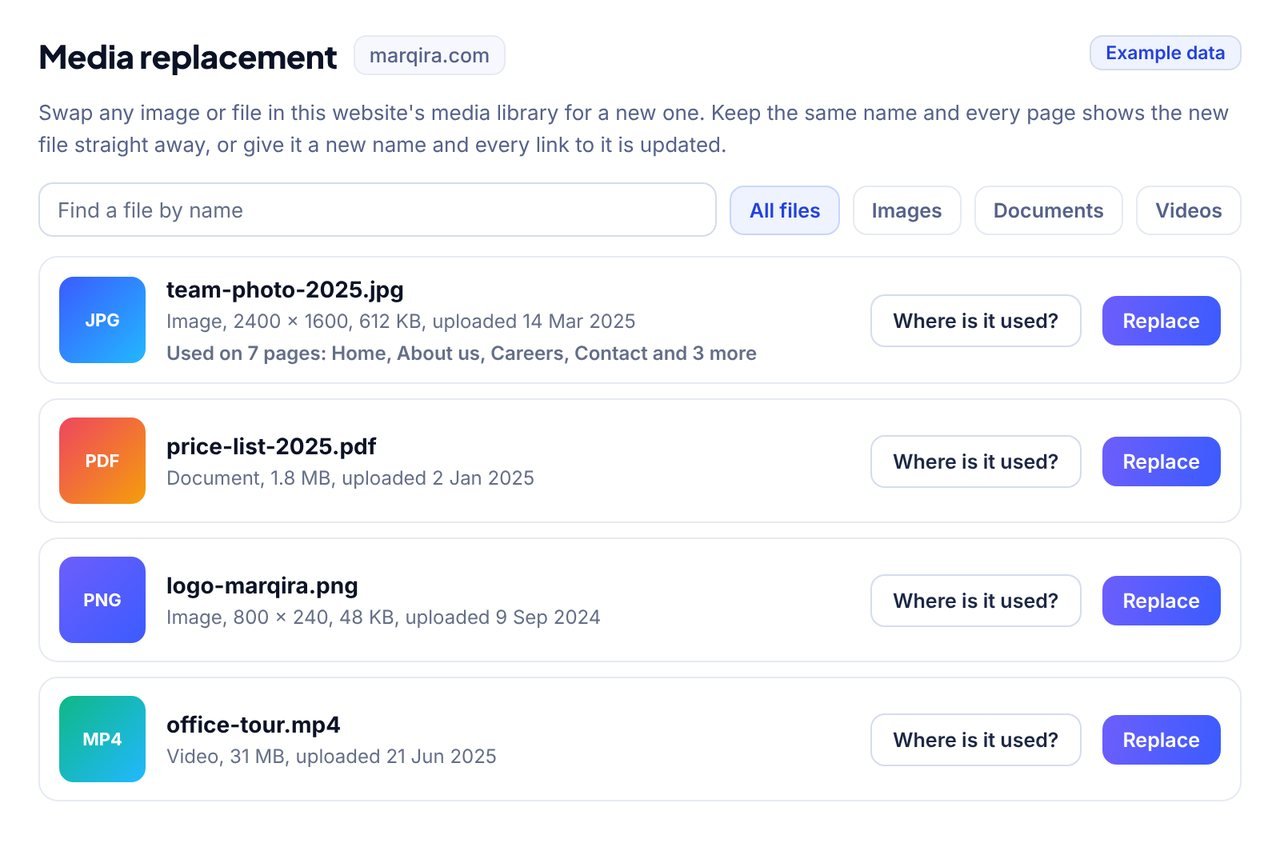
How do you replace an image on every page in WordPress?
Replace the file in the media library instead of uploading a new one. When the new file takes the old one's place, every page that uses it shows the new file at once, with nothing to change page by page. WordPress cannot do this on its own: it has no Replace button, so the usual way is to upload a second file and swap it on every page by hand.
WPCentrify adds that missing button to every website you manage. Open the website, go to Media replacement, press Replace on the old file and drop in the new one. Keep the same name and the address stays as it was, or use the new file's name and every link to the old file is updated for you, the way Search & Replace updates words across a site.
Media replacement at a glance
- Replaces any image, PDF, document or video already in the WordPress media library.
- Where is it used? lists every page, post and page-builder section that shows a file.
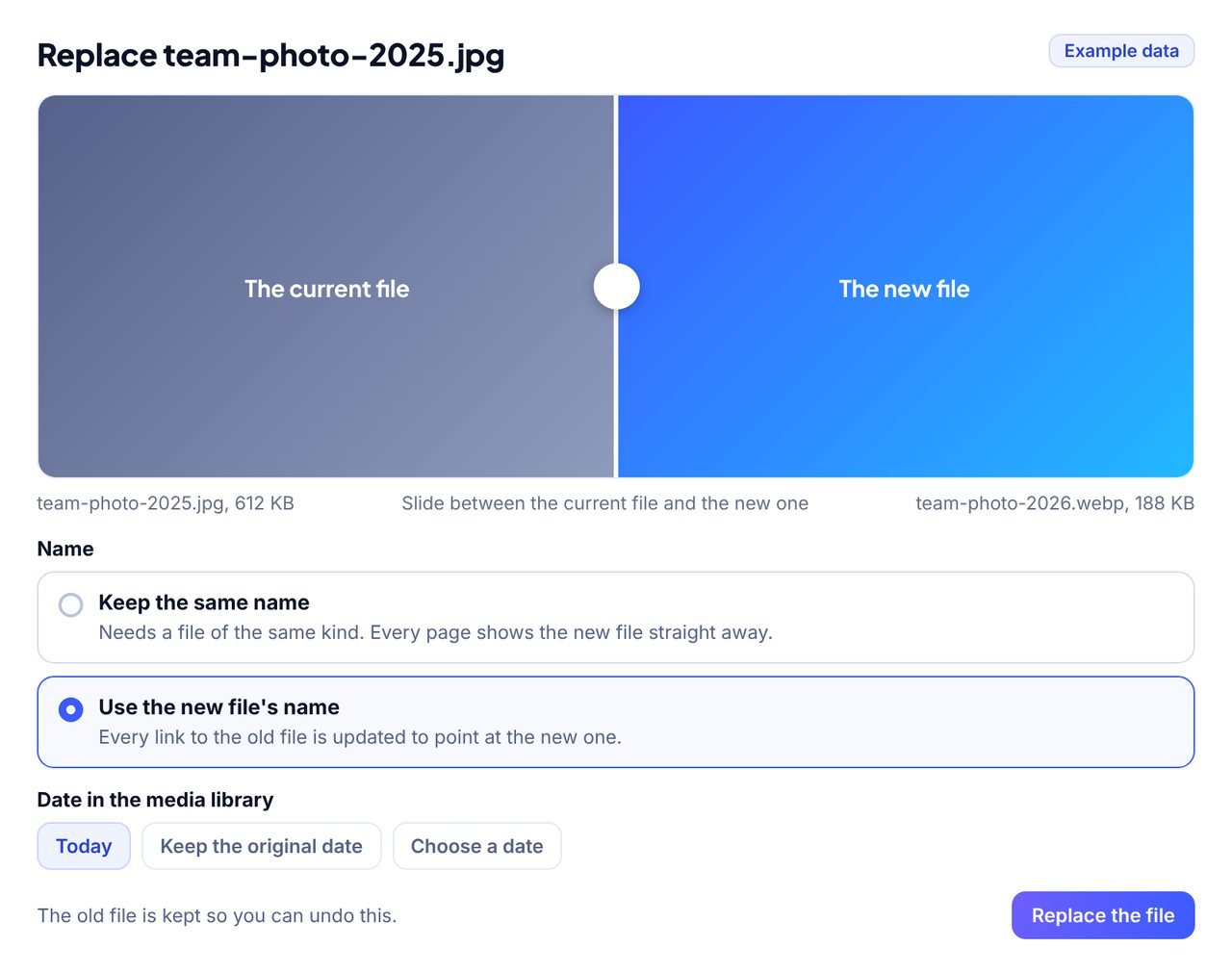
- A slider compares the current picture and the new one before anything changes.
- Keep the same name, or use the new file's name and every link is updated.
- The smaller sizes WordPress makes of each picture are made again for the new one.
- Page caches are emptied once the file is replaced, so visitors see the new file.
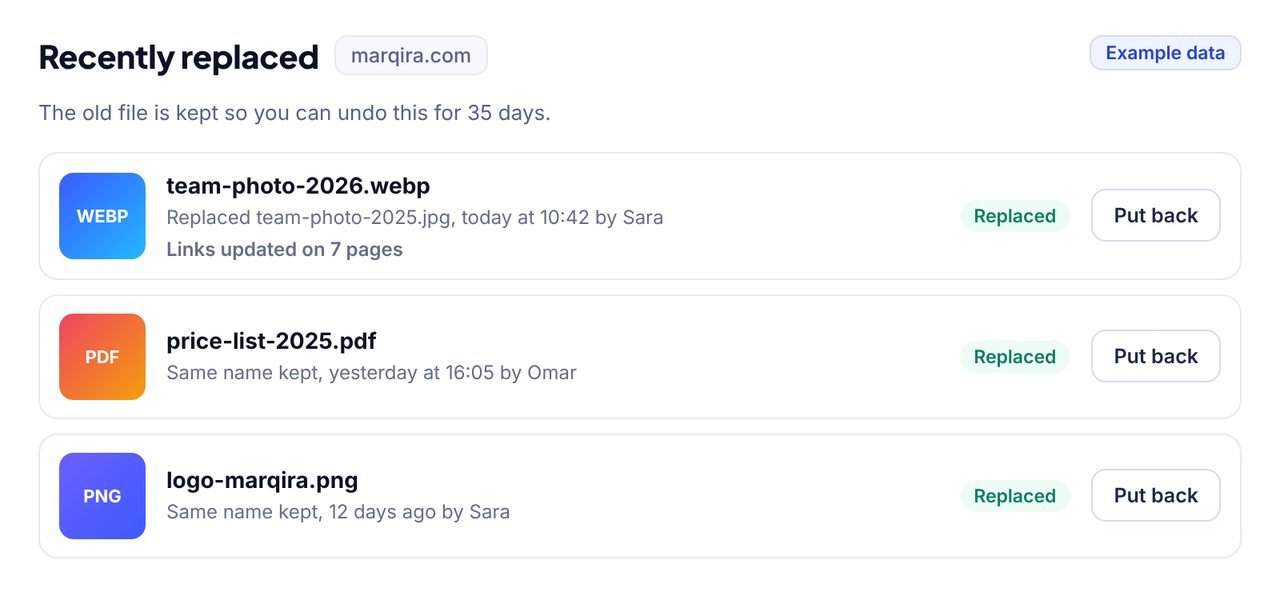
- Undo for 35 days, links and all, and every change is in the Activity log.
- Works from one dashboard on every website you manage, without signing in to WordPress.
Why replacing one picture in WordPress means editing every page
WordPress treats every upload as a new file. Its own Edit Media screen can crop, rotate, flip and scale a picture, but it cannot swap the file for another one, and a request to add a Replace button has been open on WordPress's own tracker since 2012. Once a picture is placed on a page, the page keeps its own copy of the address.
So when a client sends a new team photo, an updated price list or a fresh logo, the job becomes:
- upload the new file as a separate item in the media library,
- find every page, post, menu and page-builder section that used the old one,
- swap it by hand on each of them, and
- hope you did not miss one, because a missed page shows the old picture, or a broken one if the old file was deleted.
Most agencies install a separate replace plugin on every client website just for this. That is one more plugin to update on each site, and it still means signing in to each site to use it.
How to replace media in WordPress with WPCentrify
Four steps, about two minutes, without signing in to WordPress.
- Find the file. Open the website in WPCentrify, choose Content, then Media replacement. Search by name or filter by Images, Documents or Videos, and press Where is it used? to see every page that shows the file.
- Drop in the new file. Press Replace on the file's row and drop the new file in, or choose it from your computer.
- Compare before you commit. For a picture, slide between the current image and the new one to check you picked the right file before anything changes.
- Choose how, and replace. Keep the same name or use the new file's name, pick the date the file shows in the media library, then press Replace the file. You can leave the page while it finishes.
The row shows the replacement's progress. Large files are sent in small steps in the background, so you can close the page and come back.
Keep the same name, or use the new file's name?
Both replace the file everywhere it is used. They differ in what happens to its address.
| Choice | Best for | What happens |
|---|---|---|
| Keep the same name | A refreshed photo, an updated PDF, a new version of the same logo. | The new file takes the old one's place under the same address. Every page shows it straight away, with nothing else to change. It needs a file of the same kind, such as a JPEG for a JPEG. |
| Use the new file's name | Swapping a JPEG for a WebP or PNG, or giving a file a name that describes it. | The new file keeps its own name, and every link to the old file across the website is updated to point at the new one, including the smaller sizes WordPress makes of each picture. |
You also choose the date the file shows in the media library: today, the original upload date, or a date you pick.
See every page that uses a file before you replace it
Press Where is it used? on any file and WPCentrify lists the pages and posts that show it, including sections built with Elementor, Divi and other page builders, because it looks through the data page builders keep as well as the page content. You know what will change before you change it, and you can find the file nobody remembers putting on the pricing page.
Files are listed by name with a search box and filters for Images, Documents and Videos, so the file a client is talking about is two clicks away on any website you manage.
Replacing a file you cannot take back is a risk. This one you can.
Every replacement is checked, recorded and reversible.
Undo for 35 days
The previous file is kept on the website. Press Put back and the old file, and any links that were changed, go back exactly as they were.
Nothing half-done
The new file is checked when it arrives and swapped in only once it is complete. If anything goes wrong, the website keeps the file it had.
Kind to every host
Large files are sent to the website in small steps in the background, so a slow or busy host is never overloaded and nothing times out.
Caches cleared for you
Once the file is replaced, the website's page caches are emptied, so visitors see the new file straight away.
Tidy
Old copies are cleaned up after 35 days, so files never pile up on the client's server.
On the record
Every replacement and every undo is written to the Activity log: who did it, when, and to which file.
Recently replaced
The files replaced in the last 35 days are listed with when each was replaced, and a Put back button on every row. Putting a file back reverses the links too, so a renamed file does not leave pages pointing at an address that no longer exists.
Does replacing an image affect SEO?
Not in a bad way, if the links keep working. What hurts is a page left showing a broken image, or an old file deleted while pages still point at it. Media replacement avoids both.
- Same name: the address search engines already know stays exactly as it was, so the picture keeps its place.
- New name: a descriptive file name such as
dental-team-2026.webpreplacesIMG_4021.jpg, and every link on the website moves to it, so nothing breaks. - Alt text stays: it belongs to the media library item, which is the same item after the replacement.
- Lighter files: swapping a heavy JPEG for a WebP makes the page lighter to load. Performance monitoring shows the difference on phone and computer.
Re-uploading by hand, a replace plugin, or WPCentrify?
Three ways to put a new file on every page that used the old one.
| Re-upload and swap by hand | A replace plugin on each site | WPCentrify Media replacement | |
|---|---|---|---|
| Every page shows the new file at once | No, page by page | Yes | Yes |
| Links updated when the file name changes | By hand | In some plugins | Yes, sizes included |
| See where a file is used first | No | Depends on the plugin | Yes |
| Undo | Upload the old file again | Depends on the plugin | 35 days, links included |
| Page caches emptied | By hand | Depends on the plugin | Yes |
| Every website from one place | Sign in to each | Sign in to each | One dashboard |
Checked 3 November 2026. WordPress 7.1 has no way to replace a file in its media library. Replace plugins differ, so check the one you use.
Good to know before you start
- Files up to 48 MB can be replaced from the dashboard.
- Keep the same name needs a file of the same kind, a JPEG for a JPEG. To swap one kind for another, choose Use the new file's name.
- Media library files only. A picture written into a theme's own files or its CSS is not in the media library, so it is not listed here.
- A CDN set up only in your DNS refreshes on its own timer. One connected through a plugin on the website is emptied with the page caches.
- The website needs the latest WPCentrify plugin. If it runs an older one, the screen says so, and the update is one click away on the Updates tab.
- Who can use it: anyone in your workspace with permission to manage content. People who can only view content see the files and where each is used, without the Replace button.
Want the step-by-step version for one website, with or without a plugin? Read how to replace an image in the WordPress Media Library.
Questions about replacing media in WordPress
What people ask before they replace a file.
Replace the file itself instead of uploading a new one. WordPress has no Replace button, so most people upload a second file and swap it on every page by hand. With WPCentrify you open Media replacement, press Replace on the old file and drop in the new one. Every page, post and page-builder section that shows the old file shows the new one, and with a new file name every link to the old file is updated for you.
Yes. WordPress core cannot replace a file, so several plugins add a replace button to the media library, the best known being Enable Media Replace. WPCentrify does the same job from one dashboard for every website you manage, through the WPCentrify plugin each website already runs, so there is no extra plugin to install and keep updated on each site.
Yes. Choose Keep the same name and the new file takes the old one's place under the same address, so every page, post, menu and page-builder section that points at it shows the new file with nothing else to change. The file needs to be the same kind, for example a JPEG for a JPEG.
Yes. Choose Use the new file's name. The new file keeps its own name and type, and every link to the old file across the website is updated to point at the new one, including the smaller sizes WordPress makes of each picture.
Usually a cache. Browsers keep pictures by their address, and page caches keep whole pages. WPCentrify empties the website's page caches once a file is replaced, and a CDN connected through a plugin on the website is emptied with them. A CDN set up only in your DNS refreshes on its own timer, and your own browser may need a hard refresh. Choosing Use the new file's name avoids every cache, because the address is new.
Yes. WordPress makes the smaller sizes again for the new picture. If the new picture has a different shape and its sizes are named differently, the links to the old sizes are pointed at sizes that exist, so nothing is left pointing at a missing file.
Yes. Where is it used? looks through the page content and the data page builders keep, so builder sections are listed with everything else. With the same name, a builder section that points at the file shows the new one at once. With a new name, its links are updated by the same engine that powers Search and Replace.
Yes, for 35 days. The previous file is kept on the website. Press Put back under Recently replaced and the old file, and any links that were changed, go back exactly as they were. After 35 days the old copy is cleaned up so files never pile up on the server.
Yes. Media replacement works for any file in the WordPress media library, such as a PDF price list, a menu, a brochure or a video. The compare slider is shown for pictures only.
Files up to 48 MB can be replaced from the dashboard. Large files are sent to the website in small steps in the background, so even a slow or busy host is not overloaded and nothing times out.
Keeping the same name keeps the address search engines already know, so the page and image keep their place. Using the new file's name gives you a descriptive file name, and every link on the website moves to it. The image's alt text stays with it, because it is the same item in the media library.
Anyone in your workspace with permission to manage content. People who can only view content see the files and where each is used, without the Replace button. Every replacement and every undo is written to the Activity log, with who did it, when and to which file.
Related features
Search & Replace
Change a word, a phone number or an address on every page of a site, with a preview and undo
Read moreOptimize
Find the uploads nothing uses and move them to a bin, after the database is backed up
Read moreContent management
Every post and page across every site, edited from one dashboard
Read moreSee everything the platform does: all WPCentrify features.
Replace the next file in seconds, not page by page
Connect a website, open Media replacement and swap any file in its media library. Every page shows the new one.
Plan prices to be revealed. Keep your data, export any time.