How to manage multiple WordPress sites with WPCentrify, step by step
Connect each WordPress site once, then run updates, backups, uptime, security and client reports for all of them from one dashboard. This is exactly how to set it up in WPCentrify, the WordPress management tool for every site you run, and what to do in your first week.
The short answer
To manage multiple WordPress sites with WPCentrify, install the WPCentrify plugin on each website and connect it with a one-time code from your dashboard. About two minutes per site. After that, you update plugins in bulk with automatic rollback, keep daily backups you can restore in one click, get an email when a site is really down, see a plain security verdict for every site, and prepare a monthly report for each client, all from one place.
Disclosure: WPCentrify is our product. Every screenshot shows example data.
What does it mean to manage multiple WordPress sites with WPCentrify?
Managing multiple WordPress sites with WPCentrify means connecting each website once with a small plugin, then running updates, backups, uptime monitoring, security and client reports for all of them from one dashboard, without logging into each wp-admin. Your sites stay on their own hosts, with their own themes and content. Only the routine work moves.
This guide walks you through it in the order you will actually do it: connecting your sites, setting up updates, backups, monitoring and security, and getting a monthly report out of the door. If you are still deciding whether a management tool is right for you at all, read the three ways to manage multiple WordPress sites first. If you want the overview of every tool in WPCentrify, see manage multiple WordPress sites from one dashboard.
Why managing WordPress sites one by one stops working
With two or three websites, logging into each one is fine. Somewhere around five, it starts to slip. Updates wait a week because nobody wants to spend the afternoon clicking. A backup fails quietly and nobody notices until the day it is needed. A client tells you their site is down before you know. And at the end of the month you write the report from memory.
None of that is a skills problem. It is a time problem, and it gets worse with every site you add, because every job multiplies:
- Updates. Every site has its own list of plugins, themes and WordPress itself waiting to update, and each one can break something.
- Backups. Every site needs a recent backup you have actually checked you can restore.
- Uptime. Every site can go down at 2am, and you need to hear about it before the client does.
- Security. Every site has plugins that will one day have a known hole, and bots trying the login page all day.
- Reports. Every client wants to know what you did for the money.
A WordPress management tool turns each of those from a job per site into a job per portfolio.
What you need before you start
- Self-hosted WordPress websites on any host. WordPress.com sites on plans without plugins cannot be connected.
- An administrator login for each website, once, to install the plugin.
- About two minutes per website.
- A quick look at any security plugin or firewall on your sites, in case it blocks new connections. WPCentrify tells you if it does.
How to connect your WordPress sites to WPCentrify
Connecting is the only part you do site by site, and you only do it once.
Step 1. Create your WPCentrify account
Apply for WPCentrify early access and pick the plan that fits how many sites you look after. Early access members keep their launch prices for 12 months. If you only want to see it working first, start free on one website: the free plan monitors uptime and needs nothing more than our free plugin.
Step 2. Generate a one-time connection code
In your WPCentrify dashboard, press Add website, then Generate code. Copy the code straight away. It is shown only once, it expires after a short time and it can connect exactly one website, so a code that ends up in the wrong place is useless to anybody else.
Step 3. Install the WPCentrify plugin on the website
In the WordPress admin of the site you are adding, go to Plugins, Add New, Upload Plugin, upload the WPCentrify plugin you downloaded from your dashboard and press Activate. The plugin is small, has no other plugins it depends on and changes nothing about your theme, your content or your hosting.
Step 4. Paste the code and connect
Still in WordPress, open Settings, WPCentrify. Paste the code under Connect this website and press Connect to WPCentrify. Within about a minute the site appears in your dashboard with its plugins, themes, WordPress version and pending updates already listed.
If the site does not appear, a security plugin or firewall on the site is usually turning our server away. WPCentrify tells you when that happens and which addresses to allow, so you never have to guess.
Step 5. Repeat for every site, then sort them
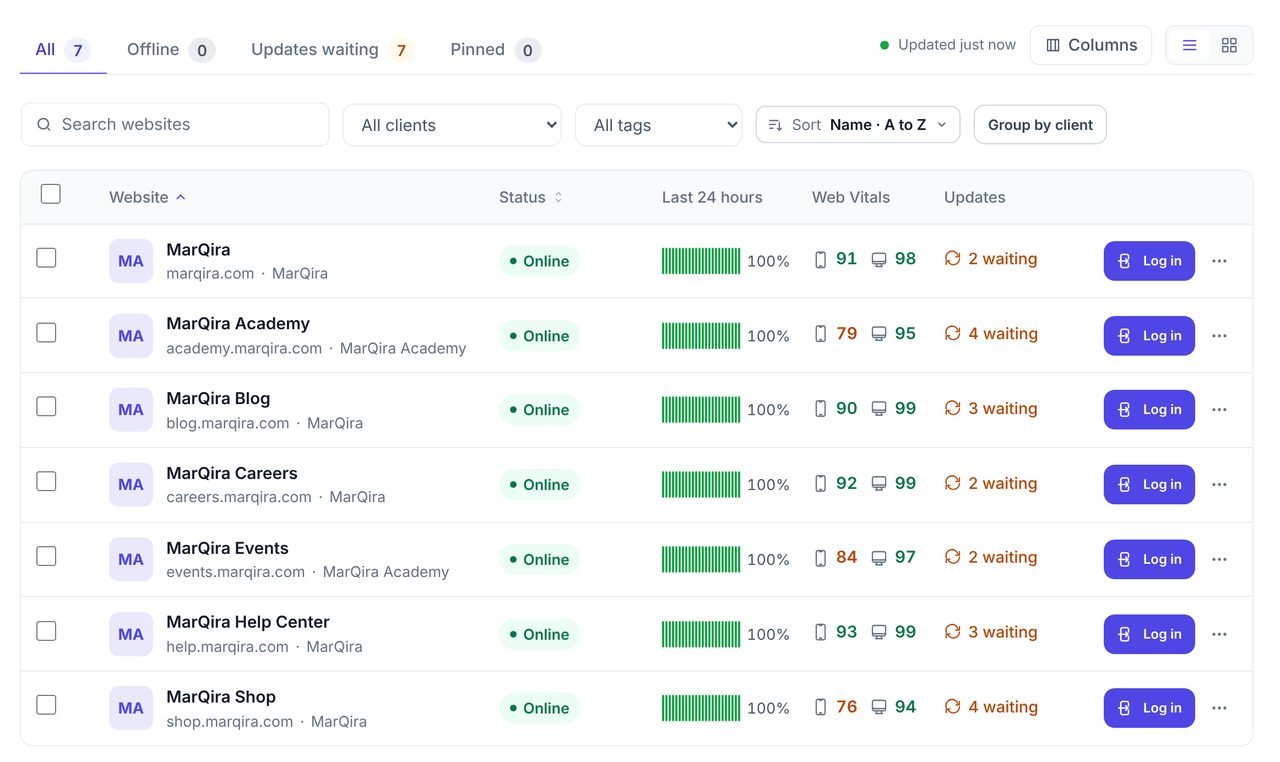
Connect the rest of your websites the same way. It takes about two minutes each, so twenty sites is well under an hour. Then file each site under its client, and pin the sites you check most so they stay at the top of your list.
Start each day on the overview
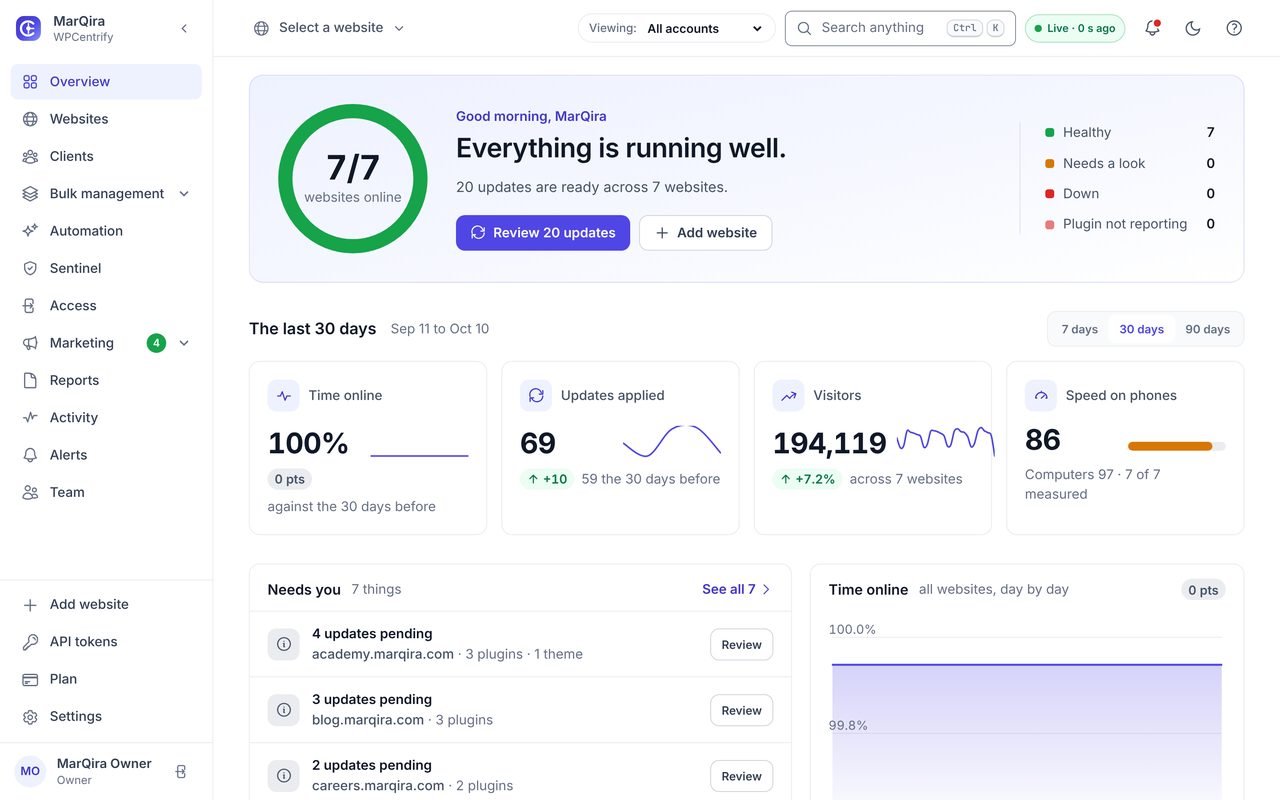
The WPCentrify WordPress maintenance dashboard opens on the whole portfolio, not an alphabetical list of sites. At a glance you see how many sites are online, how many updates are waiting, what shipped in the last 30 days, and a short list of what needs you first. Most mornings that list is empty, and that is the point: you can stop opening every site just to check it is fine.
How to update plugins on multiple WordPress sites at once
Updates are where most of the hours go, and where most of the risk is. WPCentrify handles them like this:
- Every waiting update in one place. Plugins, themes and WordPress core across every site, so you see that the same plugin is waiting on fourteen sites rather than finding out one site at a time.
- A risk label on each update. Each update is labelled so you can tell routine ones from the ones worth a look first.
- One bulk update for all of them. Bulk update WordPress plugins, themes and core across every site you choose, in one action.
- A restore point first. Every update starts with a safety copy, so nothing is done without a way back.
- Automatic rollback when something breaks. After a plugin or theme update, WPCentrify checks the site. A PHP fatal error, a server error or a visible break in the page puts that update straight back, automatically.
A WordPress core update is handled more carefully still: it gets a restore point of the database and the WordPress files first, and if anything looks wrong you put the whole site back from the dashboard. Read more about safe WordPress updates with automatic rollback, or how WordPress automatic updates work on their own.
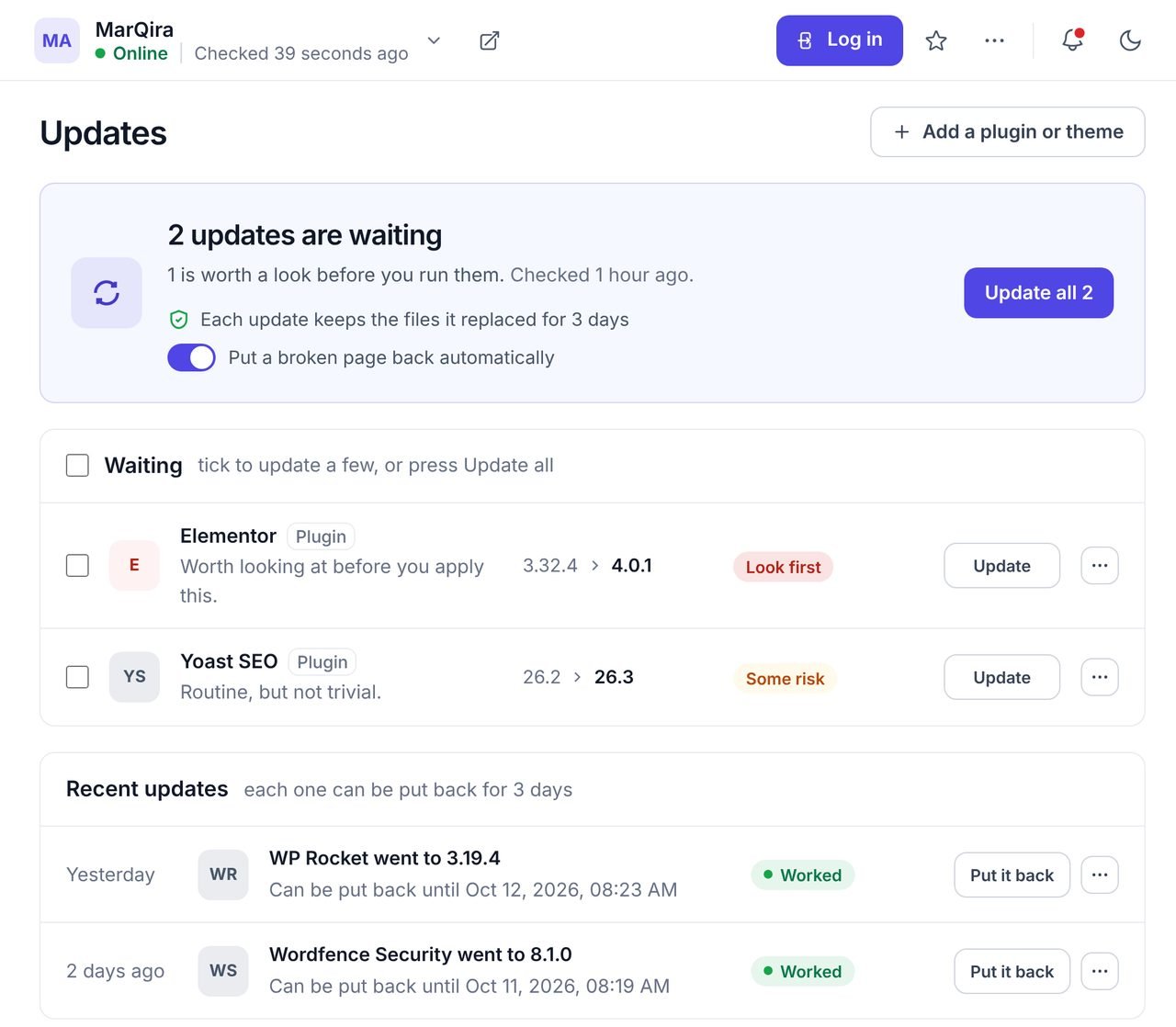
A simple routine that works: run low-risk updates in one batch each week, look at the updates labelled for a closer look one by one, and leave security fixes to go out as soon as they arrive. For online stores, pick a quiet hour rather than the middle of a sale.
How to back up multiple WordPress sites and restore one in a click
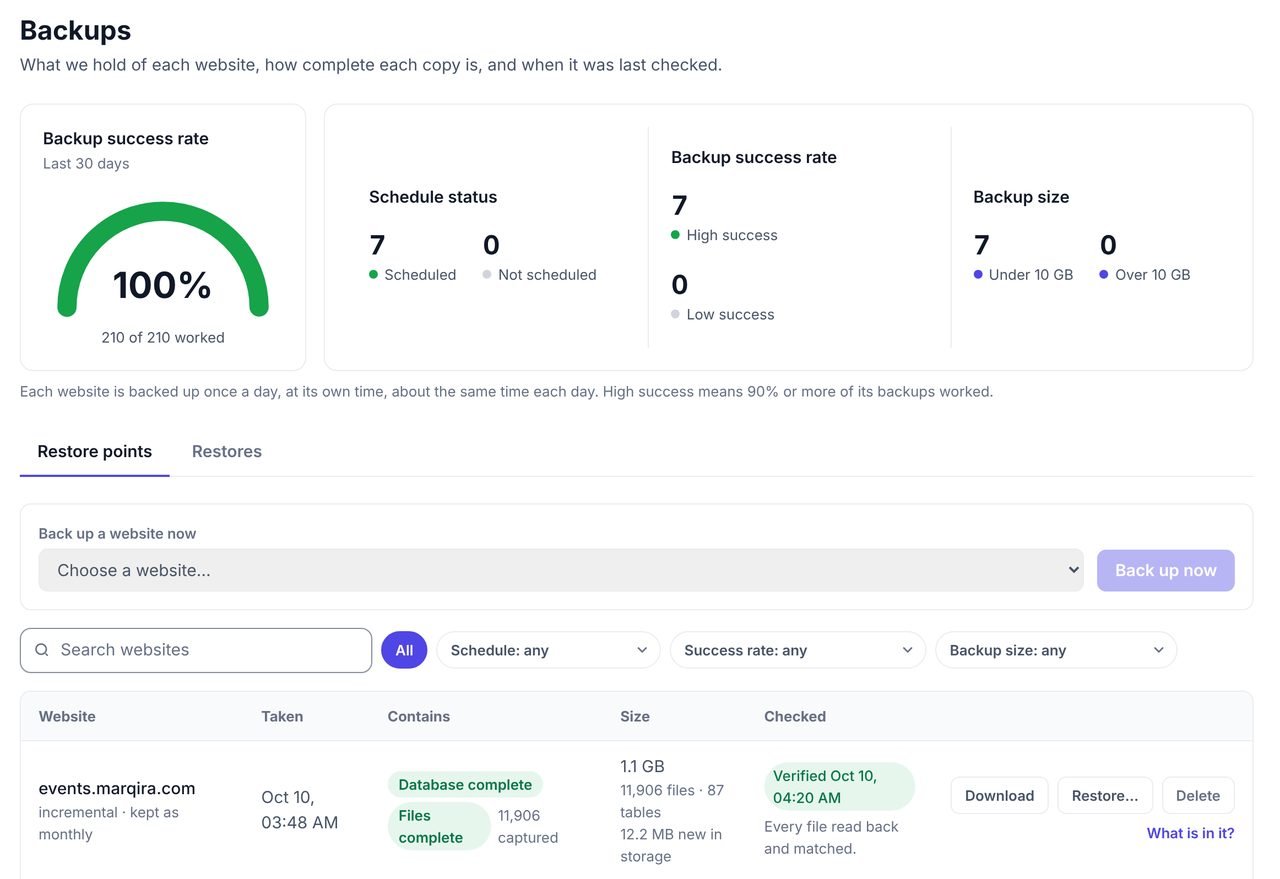
Switch backups on for each website in WPCentrify and they run on a schedule, once a day, stored off the website. The Backups screen shows how many backups worked in the last 30 days across every site, so a failed one stands out instead of hiding. When a backup finishes, every file is read back and matched, so you know it can actually be restored.
When you need one, pick the restore point and press Restore, or download it to keep a copy of your own. A copy is also taken in front of every update, whether or not scheduled backups are on. See WordPress backups with verified one-click restore, and if you are restoring by hand, follow how to restore a WordPress backup safely.
How to monitor uptime across all your WordPress sites
Every connected site is checked from three locations, in Malaysia, Canada and the USA, as often as every 60 seconds depending on your plan. You get an email only when locations on different providers agree the site is down, after three failed checks in a row, so a blip on one network does not wake you up. On sites checked every minute the email usually arrives two to three minutes after the site goes down, and a second email tells you when it is back.
WPCentrify knows what counts as down for WordPress, too. A critical error page, a database connection error or an expired SSL certificate counts. A firewall turning away only our checker, or your own update running, does not. Read WordPress uptime monitoring for the full list.
How to keep every WordPress site secure
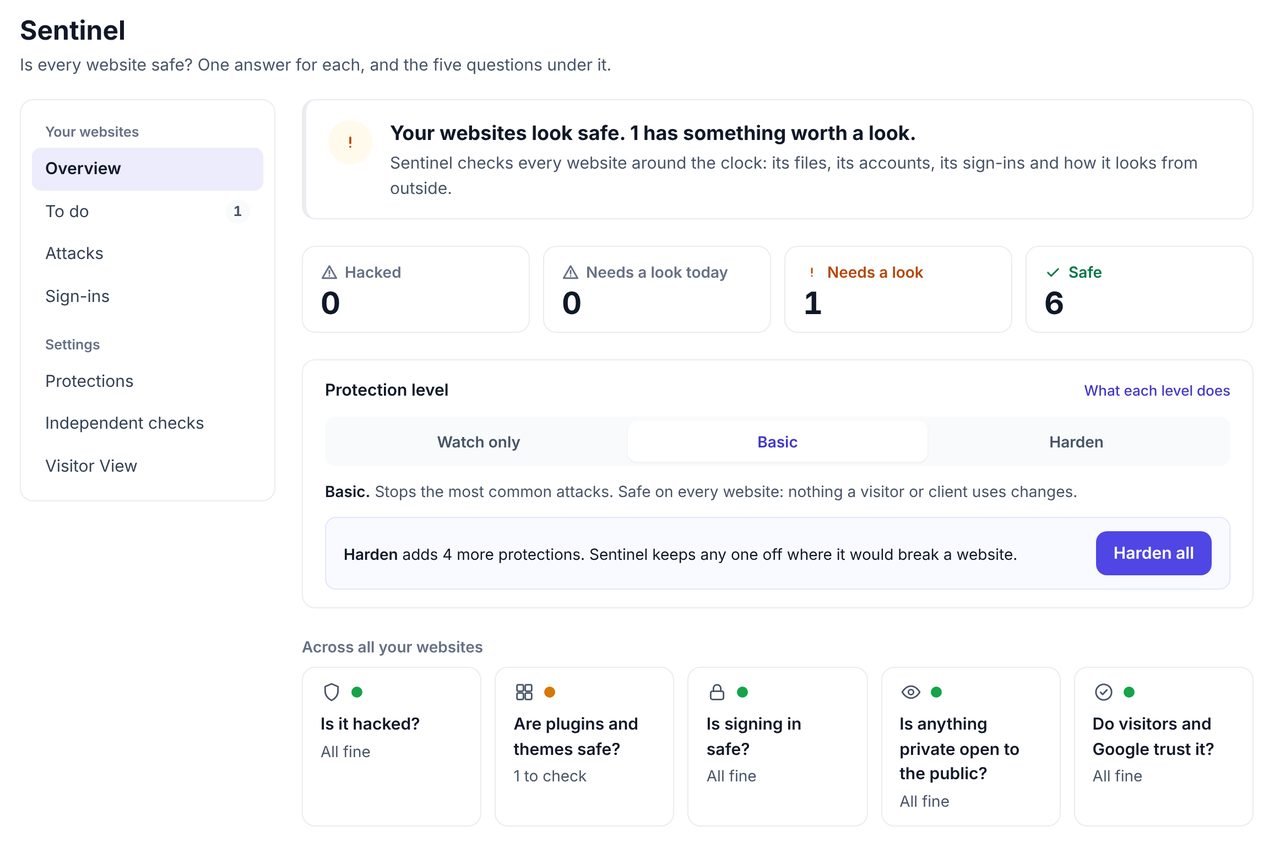
Sentinel, WPCentrify's WordPress security monitoring, gives every site one plain verdict, from Safe to Hacked, with a score out of 100 and the reason in plain English. It tells you when a plugin or theme on any site has a known security hole, shows the version that fixes it, and lets you update it from the same screen. Login protection stops bots guessing passwords, and a sign-in after a run of wrong passwords is something you hear about straight away.
How to give your team access without sharing passwords
Add your team to WPCentrify and give each person a role, so a developer can update and fix sites while an account manager only reads reports. With one-click WordPress login, anyone you allow signs in to a site's wp-admin from the dashboard, with no password emailed, stored or shared. When someone leaves, removing them from WPCentrify ends their access to every site at once. See WordPress team and client access.
How to send clients a monthly report
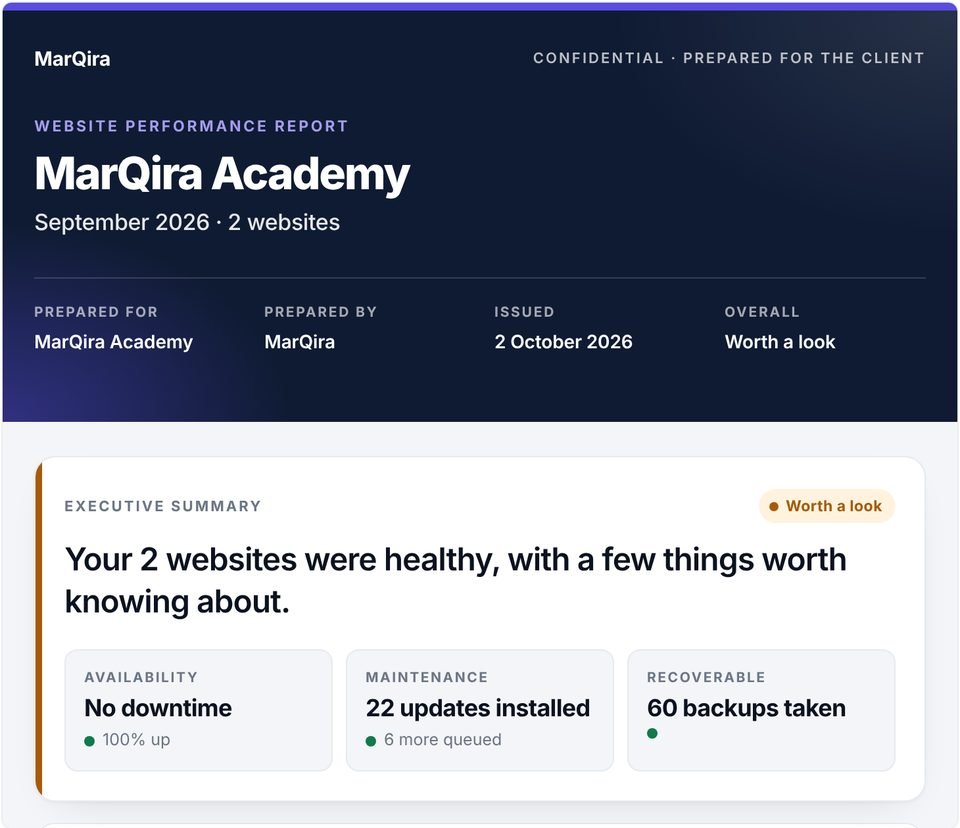
Clients renew care plans when they can see the work. WPCentrify prepares a WordPress client report from what actually happened: uptime, updates installed, backups taken and security checks. Reports are prepared on a schedule you set, you review them and add a note, then download the PDF and send it yourself, so every report reaches your client from you. With white label, the report carries your brand instead of ours.
If you sell maintenance, our guide to WordPress care plans covers what to include and how to price them, and how to manage WordPress clients covers the rest of the relationship.
What else can you manage from the same dashboard?
Updates, backups, uptime, security and reports are the core. The same connection also lets you do the jobs you would otherwise open wp-admin for, on any site:
- WordPress users on every site, including adding one person to many sites at once.
- Pages and posts, and SEO titles and descriptions written into the SEO plugin each site already runs.
- Search and replace across a whole site, page builders included, with a preview first and an undo after.
- Contact form enquiries from every site in one list, with spam set aside.
- An activity log of who changed what, on every site.
That is why we call WPCentrify an all-in-one WordPress management platform: one plugin per site instead of a separate plugin for each job.
Which WPCentrify plan includes what?
Plan prices will be revealed soon. Here is what each plan includes, so you can pick the right one today:
| What you get | Free | Solo | Studio | Agency | Scale |
|---|---|---|---|---|---|
| Websites included | 1 | 5 | 25 | 100 | 300 |
| Uptime checks from 3 locations | Every 5 minutes | Every 5 minutes | Every minute | Every minute | Every minute |
| Safe updates with automatic rollback | No | Included | Included | Included | Included |
| Bulk updates across sites | No | Included | Included | Included | Included |
| Backups and one-click restore | No | Included | Included | Included | Included |
| Sentinel security monitoring | No | $9 add-on | Included | Included | Included |
| Visual check after updates | No | $5 add-on | Included | Included | Included |
| Client reports | No | $12 add-on | Included | Included | Included |
| Team roles and permissions | No | No | Included | Included | Included |
| White label | No | $19 add-on | $19 add-on | Included | Included |
Every paid plan can add extra websites, and alerts are by email on every plan. See WPCentrify pricing for the full list of what each plan includes.
When you do not need a management tool
To be fair, not everybody does. You can probably skip one if:
- You run one or two small websites that rarely change, and logging in once a month is no trouble.
- All your sites live inside one WordPress Multisite network, which already updates them together.
- Your bottleneck is winning clients or building sites, not maintaining the ones you have.
Even then, it is worth having outside uptime monitoring on any site that matters. The free plan does that for one website.
How does WPCentrify compare with WP Umbrella, ManageWP and MainWP?
All four manage multiple WordPress sites from one place, and each does some things well. The honest short version: MainWP is self-hosted, so you run the dashboard on your own WordPress install; ManageWP and WP Umbrella are hosted and priced per site. WPCentrify is hosted too, and goes further on what happens after an update and on the jobs beyond maintenance, such as content, users, enquiries and SEO, in the same dashboard.
We keep sourced, side by side comparisons for each, including where the other tool is the better choice: WP Umbrella alternative, ManageWP alternative and MainWP alternative. For the wider field, see the best WordPress management tools.
Your first week with WPCentrify
- Day 1. Connect every site and file each one under its client.
- Day 2. Switch on backups for each site and check the first one finished.
- Day 3. Review the waiting updates and run the low-risk ones in one batch.
- Day 4. Open Sentinel and fix anything that needs a look.
- Day 5. Invite your team, give each person a role and stop sharing passwords.
- End of the month. Review your first client reports and send them.
After that, most weeks come down to one look at the overview, one batch of updates and the odd alert, for every site you run.
Questions about managing multiple WordPress sites with WPCentrify
Create a WPCentrify account, install the WPCentrify plugin on each website and connect it with a one-time code. Every connected site then appears in one dashboard, where you update plugins, themes and core, take and restore backups, watch uptime and security, and prepare client reports for all of them without logging into each wp-admin.
About two minutes per website. You generate a connection code in WPCentrify, install and activate the plugin in WordPress, paste the code and press Connect. The site shows up in your dashboard within a minute of connecting.
Yes. WPCentrify works with any host that runs self-hosted WordPress, including Hostinger, SiteGround, WP Engine, Cloudways, cPanel hosting and your own server. Nothing moves and nothing changes in DNS. Your sites stay exactly where they are.
Yes. WPCentrify lists every waiting plugin, theme and core update across all your sites, labels each one by risk, and runs them in one bulk update. A restore point is taken first, and a plugin or theme update that breaks a site is put back automatically.
WPCentrify checks each site after a plugin or theme update. If the update causes a PHP fatal error, a server error or a visible break in the page, it is rolled back automatically. A WordPress core update gets a restore point first, so you can put the whole site back from the dashboard.
No. WordPress Multisite runs many sites inside one WordPress installation that shares plugins, themes and a database. WPCentrify connects separate WordPress installations, each with its own host, plugins and database, and manages them from one dashboard.
No. The plugin does its maintenance work through the WordPress REST API and adds nothing to page loads for that, and uptime checks come from outside your site. Only optional visitor features you switch on, such as traffic analytics or the cookie consent banner, add a small script.
No. The plugin connects with a one-time code and a scoped key, not your password. Your team signs in to any site with one-click login from the dashboard, so nobody needs to store or share an admin password.
Only if you want them to. Client reports are prepared in WPCentrify for you to review and download as a PDF, so they reach your client from you. On the Agency and Scale plans, white label puts your own brand on the reports, and it is a paid add-on on Solo and Studio.
Plans include from 5 websites on Solo up to 300 on Scale, and you can add extra websites to every paid plan. The free plan covers uptime monitoring for one website.
Yes. The free plan monitors uptime for one website, connected with our free MarQira Uptime Monitor plugin on WordPress.org. Paid plans connect with the full WPCentrify plugin and add updates, backups, security and reports.
Yes. Connect each site by installing the WPCentrify plugin, check that everything reports in, then remove the old tool's plugin. WPCentrify does not import settings from other tools, so turn off automatic updates in the old tool while both are connected, so two tools never update the same site.
Related reading
Manage multiple WordPress sites from one dashboard
Every tool in WPCentrify for running a portfolio of WordPress sites, in one place.
See every toolHow to manage multiple WordPress sites
Multisite, a self-hosted plugin or a hosted platform: which approach fits your sites.
Read the guideThe best WordPress management tools
Ten tools compared on update safety, backups, monitoring and reporting.
Read the comparisonMore on this topic: safe WordPress updates and the WordPress maintenance dashboard.
Connect your first site in two minutes
Install the plugin, paste one code, and every update, backup, uptime check and security verdict for that site lands in one dashboard. Then do the same for the rest.
Plan prices to be revealed. Start free on one website today.