How to fix "Your site could not complete a loopback request" in WordPress
Site Health shows a critical issue, "Your site could not complete a loopback request", and your site looks fine to you. It is not fine for WordPress: the server cannot reach its own website, so scheduled posts, update checks and the file editors stop working. Here is how to read the error and fix every common cause.
The short answer
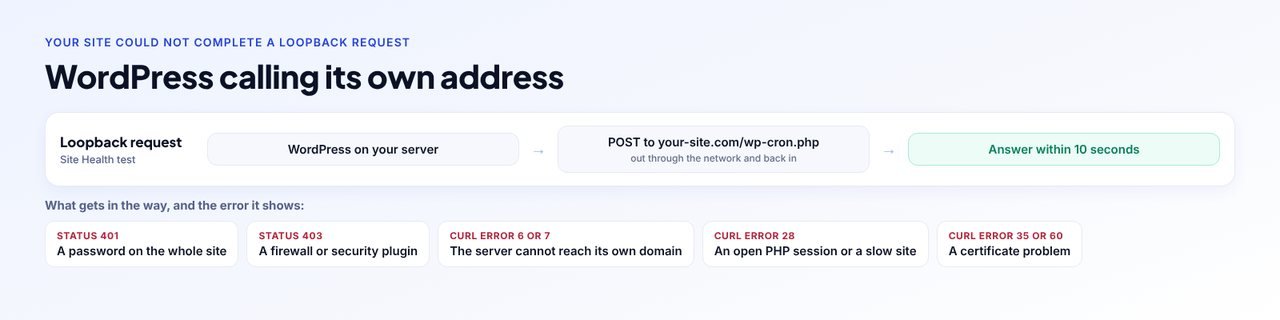
"Your site could not complete a loopback request" means WordPress tried to call its own wp-cron.php over HTTP and got no normal answer within 10 seconds. Read the reason at the end of the message: a timeout (cURL error 28) usually means an open PHP session, a slow site or a firewall dropping the request; a connection error (cURL error 6 or 7) means the server cannot reach its own domain; a 401 means a site password and a 403 means a firewall. Fix that cause, then rerun Site Health. It matters because WP-Cron, and with it scheduled posts and update checks, starts its work the same way.
Disclosure: WPCentrify is our product. Everything said about how WordPress behaves comes from WordPress's own code and documentation, checked 7 November 2026.
What is a loopback request in WordPress?
A loopback request is WordPress making an HTTP request to its own website, as if it were a visitor. The request leaves PHP, goes out through the server's network to your own domain name, and comes back in through the web server, any firewall and any CDN, to WordPress again.
WordPress does this for work it wants to happen separately from the page someone is looking at. Site Health's own description lists the two big ones: loopback requests "are used to run scheduled events, and are also used by the built-in editors for themes and plugins to verify code stability". In practice that means:
- WP-Cron. When a scheduled task is due, WordPress starts wp-cron.php by requesting it from its own address. Scheduled posts, update checks, automatic updates and plugin jobs all run this way.
- The theme and plugin file editors. When you save a PHP file in wp-admin, WordPress requests the admin and the home page to check that your edit did not break the site, and undoes the edit if it did.
- Plugins. Many plugins start background work the same way, including some backup, import and shop plugins.
What does the Site Health loopback test actually do?
Understanding the test makes the error much easier to read. Taken from WordPress's own code, when you open Site Health it:
- Sends a POST request to your own wp-cron.php, at the address WordPress has for your site.
- Waits up to 10 seconds for an answer.
- Passes on your login cookies, and your HTTP password if you signed in to a password-protected site.
- Does not check the SSL certificate, because a request to yourself does not need to.
- Reads the result. No answer at all is a critical issue. An answer with any status other than 200 is a recommendation. A 200 passes.
Because the request is a POST, wp-cron.php stops straight away and runs nothing, so the test is safe to repeat.
How do you read the loopback error message?
The message ends with the reason in brackets, and that reason tells you where to look. A critical issue reads "The loopback request to your site failed, this means features relying on them are not currently working as expected", followed by an error such as cURL error 28: Operation timed out after 10001 milliseconds. A recommendation reads "The loopback request returned an unexpected http status code" followed by the number.
| What Site Health shows | What it means | Where to look first |
|---|---|---|
| cURL error 28 (timed out) | The request was sent but nothing came back within 10 seconds | An open PHP session, a slow or overloaded site, or a firewall that drops requests silently |
| cURL error 7 (failed to connect, connection refused) | Nothing answered at the address the server tried | How the server resolves its own domain; a site moved to a new server or behind a CDN |
| cURL error 6 (could not resolve host) | The server could not look up its own domain name | The server's DNS settings, or a domain that only resolves outside the server |
| cURL error 35 or 60 (SSL) | The secure connection could not be set up | An expired or self-signed certificate on a local or staging site, or an old certificate bundle |
| Status 401 | The site asked for a password | An HTTP password on a staging site or on wp-admin |
| Status 403 | Something refused the request | A firewall, security plugin, ModSecurity rule or CDN bot protection |
| Status 404, 500 or 503 | The request reached a server that could not serve it properly | Rewrite rules, a fatal error, maintenance mode, or a server that is out of workers |
Keep the exact text. Your host's support team can act on "cURL error 7 to my own domain" far faster than on "Site Health has a warning".
What causes a failed loopback request, and how do you fix each one?
1. A password on the whole site
Staging and development sites are often locked with an HTTP password (basic authentication). The server is asked for the password like everyone else. Here is the catch: Site Health passes along your own password, so its test can pass, while WP-Cron's own requests send no password and still fail. Scheduled tasks on a password-protected staging site often never run, even with a green Site Health.
Fix: exclude wp-cron.php and admin-ajax.php from the password, or allow requests from the server's own IP address without one. On Apache, that is a few lines in the .htaccess that holds the password rules; on nginx, an allow line or a separate location for those files. Your host can do it for you.
2. A firewall or security plugin blocking the server
Security plugins, ModSecurity rules on the server and CDN bot protection can all treat a request from the server to itself as suspicious, particularly if lots of them arrive at once. That shows up as a 403 or, if the firewall drops the request quietly, as cURL error 28.
Fix: allowlist the server's own public IP address in the security plugin and in the CDN, and ask your host to check the server firewall and ModSecurity logs for blocked requests to wp-cron.php.
3. The server cannot reach its own domain
The server has to find your domain and connect to it from the inside. That fails when the domain points to a CDN or a new server the old server cannot reach, when the server cannot connect to its own public address (common on some cloud networks and in Docker), or when the server's DNS does not know the domain. The result is cURL error 6 or 7.
Fix: make the domain resolve to the right place from the server itself. The usual way is an entry in the server's hosts file that points your domain at the server's own address, which your host can add. On a site that moved, make sure the old server is no longer the one answering.
4. A plugin holding a PHP session open
Some plugins start a PHP session and leave it open for the whole request. PHP lets only one request use a session at a time, so the loopback request, which arrives with your cookies, waits for the session to be released and times out. Site Health has a separate check for exactly this: "An active PHP session was detected", which asks for the session to be closed with session_write_close() before any HTTP request is made.
Fix: find the plugin that starts the session (switching plugins off one at a time is the reliable way), update it, and report it to its developer if the problem stays.
5. A site too slow or too busy to answer itself
On small hosting plans, PHP may only run a couple of requests at once. While one is busy building your Site Health page, the loopback request has to wait for a free worker, and a slow site may not answer within 10 seconds anyway.
Fix: find what makes the site slow (often one heavy plugin), add page caching for visitors, or ask your host about more PHP workers on your plan.
6. Local development and SSL problems
On a local site, the domain may only exist in your computer's hosts file, or the certificate may be self-signed, so the server inside your local tool cannot reach it. Fix it in the local tool's settings, or ignore the warning on a local copy you never use for scheduled work.
How do you test the loopback request from the server?
Test from where WordPress runs, not from your browser. Your browser takes a different route to the site, so a page that loads for you tells you nothing about whether the server can reach itself. With SSH access, run these on the server, replacing the address with your own:
# Can the server reach its own wp-cron.php, and how long does it take?
curl -sS -o /dev/null -w "%{http_code} in %{time_total}s\n" https://example.com/wp-cron.php

# Where does the server think your domain is?
getent hosts example.com

# Can WordPress start WP-Cron over HTTP?
wp cron test
A 200 in under a second means the route works. A 401 or 403 points to a password or a firewall. A timeout or "could not resolve" points to the network, and the address from getent tells you whether the server is trying the right place. wp cron test runs WordPress's own check and says plainly whether spawning WP-Cron works.
How do you fix it, step by step?
- Read the exact error in Site Health. Open Tools, then Site Health, expand the loopback item and note the error: a cURL error number or an HTTP status code such as 401 or 403.
- Test the request from the server. Run curl against your own wp-cron.php from the server, so you see what WordPress sees rather than what your browser sees.
- Fix what the error points to. Allow the server through a password on the site, allowlist its address in the firewall, fix how the server reaches its own domain, or find the plugin holding a PHP session.
- Test with plugins out of the way. Use troubleshooting mode in the Health Check and Troubleshooting plugin to switch plugins off for your session only, then run Site Health again.
- Run Site Health again. Reload Tools, then Site Health, and check that the loopback and REST API items now pass.
- Check that WP-Cron runs. Make sure scheduled events are no longer late, or set up a server cron job so scheduled tasks no longer depend on the loopback at all.
Test plugins without breaking the live site
The Health Check and Troubleshooting plugin, maintained by WordPress.org contributors, has a troubleshooting mode that switches plugins off and changes the theme for your session only. Visitors keep seeing the normal site while you switch plugins back on one at a time and rerun the test. When the loopback starts failing again, the last plugin you switched on is the cause.
What about "The REST API encountered an error"?
Site Health runs a second, very similar test: a GET request to your site's REST API, also with a 10 second limit. It shows as "The REST API encountered an error" when there is no answer and "The REST API encountered an unexpected result" when the answer is wrong. The block editor relies on the REST API to load and save posts, so this one you notice quickly.
When both tests fail together, treat them as one problem: the server cannot reach itself, and every cause above applies. When only the REST API fails, look at security plugins that turn the REST API off for logged-out users, and at permalink and rewrite rules.
Why a failed loopback leads to missed scheduled posts
WP-Cron starts its work with exactly this kind of request, so when the loopback fails, scheduled tasks pile up: posts go live late, update checks stop and plugin jobs wait. Our guide to WordPress missed schedule and WP-Cron covers the other half of the fix. The most robust setup runs WP-Cron from a server cron job with WP-CLI, which runs the due tasks directly and does not need a loopback request at all.
Failed automatic updates can trace back to the same place, because WordPress runs them through WP-Cron. If you also have the "An automated WordPress update has failed to complete" warning, read what that warning and the failure emails mean.
How does WPCentrify work on sites that cannot call themselves?
A host that blocks loopback requests is more common than you might think: managed hosting, sites behind a CDN, staging sites behind a password, and every site that runs WP-Cron from the server rather than on page loads. We built WPCentrify, the WordPress management tool, so the work it does for you does not depend on the site calling itself.
- Updates start from our request. When you press update in WPCentrify, the request from our dashboard runs the update itself on servers that can finish a response early (PHP-FPM and LiteSpeed, which covers most hosting), so it starts in seconds rather than waiting for a scheduled task. Read more about safe updates with automatic rollback.
- Uptime is checked from outside. WPCentrify uptime monitoring checks each website from our own servers, so a website with a stuck WP-Cron is still checked on schedule.
- One screen for every website. When you manage many sites, you see their updates, uptime and security together instead of opening Site Health on each one. See how to manage multiple WordPress sites from one dashboard.
WPCentrify does not change your server's firewall, DNS or password settings. Those stay with you and your host. What it removes is the need for the site to reach itself before your updates and checks can run.
Your loopback checklist
- The exact error from Site Health written down
- curl from the server to your own wp-cron.php tested
- wp-cron.php and admin-ajax.php excluded from any site password
- The server's own IP address allowlisted in the security plugin and CDN
- The domain resolving to the right server from the server itself
- No plugin holding a PHP session open
- Site Health loopback and REST API items passing
- Scheduled events no longer late, or WP-Cron run from a server cron job
Sources
- wp-admin/includes/class-wp-site-health.php, WordPress source code (the loopback, REST API and PHP session tests)
- wp-includes/cron.php, WordPress source code (how WP-Cron is started)
- Site Health screen, WordPress documentation
- Health Check and Troubleshooting, WordPress.org plugin directory
- wp cron test, WP-CLI Commands
- libcurl error codes, curl documentation
All sources checked on 7 November 2026.
Questions about WordPress loopback requests
It means WordPress tried to make an HTTP request to its own address, to its wp-cron.php file, and did not get a normal answer back within 10 seconds. Something between the server and its own website blocked, slowed or refused the request.
A loopback request is WordPress calling its own website over HTTP, the same way a visitor would. WordPress uses it to start scheduled tasks with WP-Cron and to check that a theme or plugin file you edit in wp-admin has not broken the site.
Scheduled posts can miss their time, update checks and automatic updates can stop, the built-in theme and plugin file editors cannot check your edits, and plugins that run background work the same way, such as some backup and shop plugins, can stall.
cURL error 28 is a timeout: the request was sent but no answer came within 10 seconds. The usual causes are a plugin holding a PHP session open, a site too slow to answer while it is busy with your own request, or a firewall that silently drops the request instead of refusing it.
Yes. If the whole site sits behind an HTTP password, the server is asked for the password like everybody else. Site Health forwards your own login, so its test can pass, while WP-Cron, which sends no password, still fails. Exclude wp-cron.php and admin-ajax.php from the password, or allow the server's own address.
Usually. "The REST API encountered an error" comes from a similar test that calls your site's REST API instead of wp-cron.php. When both fail together, the cause is almost always the same: the server cannot reach itself, or something blocks it.
Only if you have checked what depends on it. If you run WP-Cron from a server cron job with WP-CLI, do not use the file editors and none of your plugins need background requests, the warning matters less. On most sites it is worth fixing, because scheduled tasks rely on it.
Because your browser is not the server. The test runs from the server to the site's own address, through the server's own network, DNS and firewall. A site can load perfectly for visitors while the server itself cannot reach it.
It can. When a plugin starts a PHP session with session_start() and does not close it, the loopback request waits for the session to be released and times out. Site Health reports this separately as "An active PHP session was detected".
Often, yes, because many causes sit on the server: the firewall, how the server resolves its own domain, or its PHP workers. Send them the exact error from Site Health and the result of a curl request to your wp-cron.php from the server.
Related reading
WordPress missed schedule
Why scheduled posts miss their time when WP-Cron cannot start, and how a server cron job fixes it for good.
Read the guideAn automated update failed
What the warning and the failure emails mean, and how to finish an update that did not complete.
Read the guideSafe updates
Updates that start from our request rather than WP-Cron, with automatic rollback for plugins and themes.
See the featureMore on this topic: how to monitor a WordPress site, the WordPress critical error and the WordPress maintenance checklist.
Keep updates and checks running, even on sites that cannot call themselves
Connect your websites to WPCentrify and run updates, uptime checks and security from one dashboard.
Plan prices to be revealed. Start free on one website today.